
You have accomplished the following:
- Created two new user accounts.
- Created two new group accounts.
- Manually added members to a group.
- Created a query to automatically add users to a dynamic group.
- Created a new administrative unit.
- Assigned the User Administrative role to the administrative unit.
- Added a user account as a member of the administrative unit.
Sign in :- https://entra.microsoft.com
Create user 1 like below


Create a group

- Open a new InPrivate or Incognito browser window, go to portal.azure.com, and then sign is as Student01@Hexelo62880149x3.onmicrosoft.com by using password InitialPwd!-6256170 as the password, and then when prompted, change the password to muma8tDz.
If prompted to stay signed in, select No.
Want to learn more? Review the documentation for guidance on Azure Portal supported browser devices.
You should be presented with a More information required window.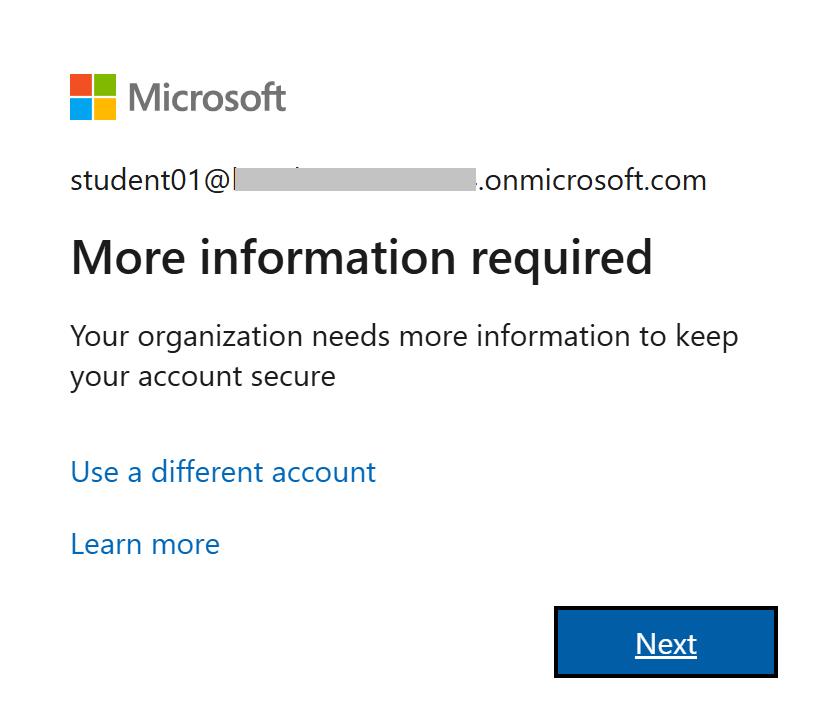 You will provide the MFA information in the following step.
- In the InPrivate or Incognito browser window logged in as Student01, configure the additional security verification information for MFA, continue to authenticate to Azure by using the Microsoft Authenticator app.
Want to learn more? Review the documentation on using the Microsoft Authenticator app.
If prompted to stay signed in, select No.
If shown a Welcome to Microsoft Azure. We are glad you are here. window, select Cancel. Dismiss all other prompts.
Because there is no subscription associated with the directory tenant, the Welcome to Azure! home page will display.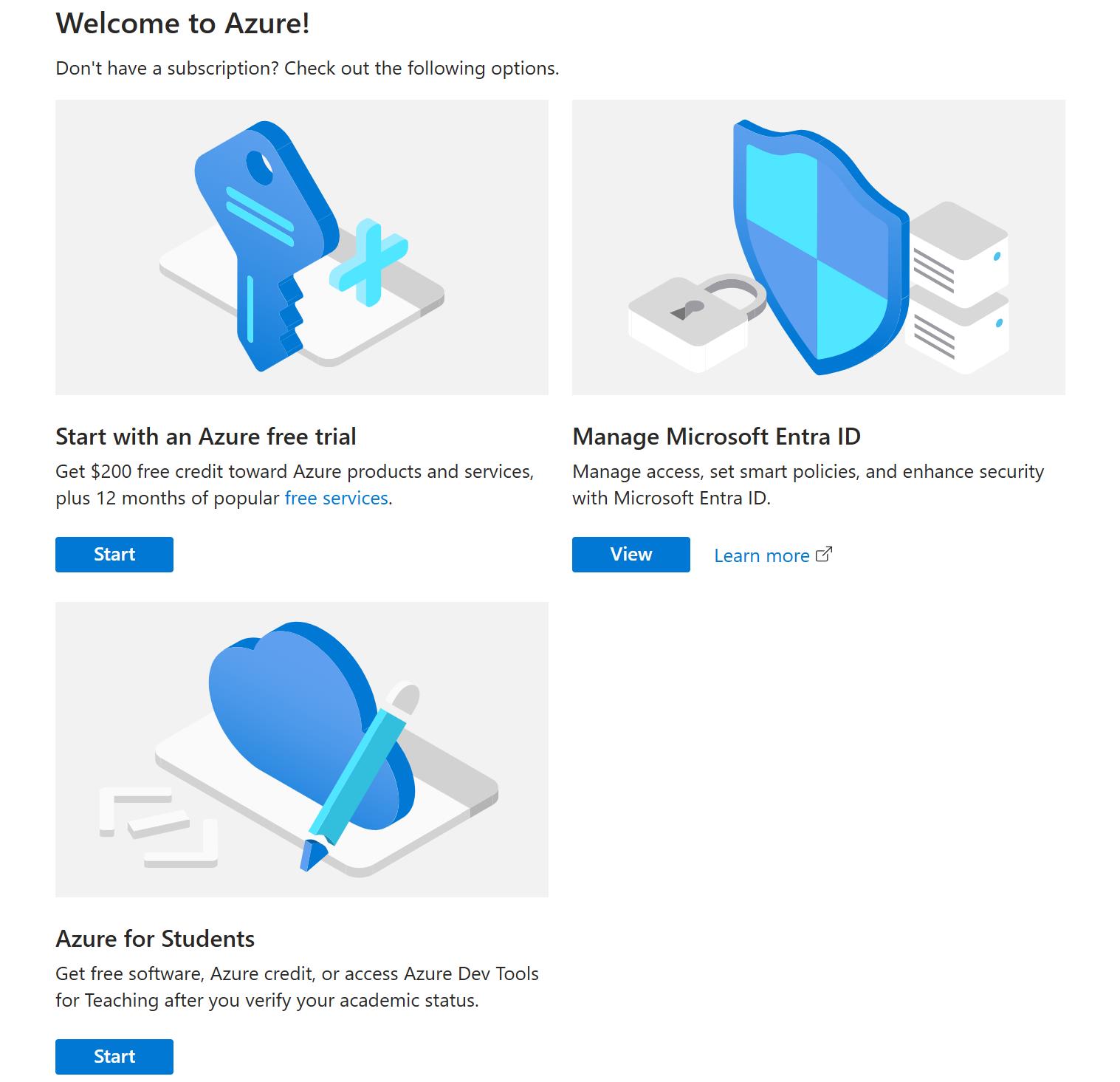
- In Microsoft Entra ID, attempt to reset the password for Student02.
You cannot reset the password for student02 because you do not have sufficient administrative permissions.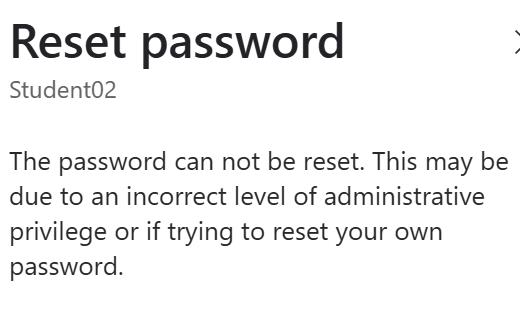
Want to learn more? Review the documentation for guidance on resetting a password.
Close the InPrivate or Incognito browser window, and then switch back to the browser window that is open to the Microsoft Entra admin center signed in using your administrative account LabAdmin@Hexelo62880149x3.onmicrosoft.com.
Create a new Microsoft Entra administrative unit named IT Users, that has a description of Admin unit to delegate control over IT user accounts, and then assign Student01 the User Administrator role for the administrative unit.
Want to learn more? Review the documentation for guidance on creating an administrative unit
- Confirm that Student01 has been assigned the User Administrator role for the IT Users administrative unit, and then add Student02 as a member of the IT Users administrative unit.
Want to learn more? Review the documentation for guidance on adding a user to an administrative unit..
- Open a new InPrivate or Incognito browser window, go to portal.azure.com, and then sign is as Student01@Hexelo62880149x3.onmicrosoft.com using muma8tDz as the password.
If prompted to stay signed in, select No.
Now that you have setup MFA for Student01, you should receive an MFA request via the Microsoft Authenticator app.
- In Microsoft Entra ID, reset the password for Student02.
Student01 should now be able to reset the password for Student02. This is because Student01 has User Administrator rights but only for the User members of the IT Users administrative unit.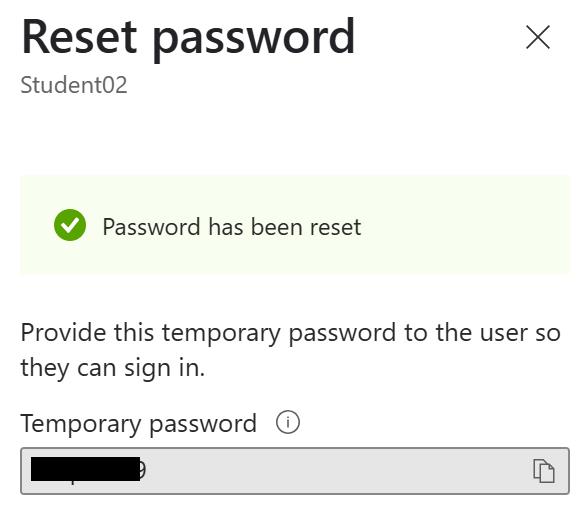
If prompted to stay signed in, select No.
Want to learn more? Review the documentation for guidance on Azure Portal supported browser devices.
You should be presented with a More information required window.You will provide the MFA information in the following step.
Want to learn more? Review the documentation on using the Microsoft Authenticator app.
If prompted to stay signed in, select No.
If shown a Welcome to Microsoft Azure. We are glad you are here. window, select Cancel. Dismiss all other prompts.
Because there is no subscription associated with the directory tenant, the Welcome to Azure! home page will display.
You cannot reset the password for student02 because you do not have sufficient administrative permissions.
Want to learn more? Review the documentation for guidance on resetting a password.
Close the InPrivate or Incognito browser window, and then switch back to the browser window that is open to the Microsoft Entra admin center signed in using your administrative account LabAdmin@Hexelo62880149x3.onmicrosoft.com.
Create a new Microsoft Entra administrative unit named IT Users, that has a description of Admin unit to delegate control over IT user accounts, and then assign Student01 the User Administrator role for the administrative unit.
Want to learn more? Review the documentation for guidance on creating an administrative unit
Want to learn more? Review the documentation for guidance on adding a user to an administrative unit..
If prompted to stay signed in, select No.
Now that you have setup MFA for Student01, you should receive an MFA request via the Microsoft Authenticator app.
Student01 should now be able to reset the password for Student02. This is because Student01 has User Administrator rights but only for the User members of the IT Users administrative unit.



0 Comments